The Best Visual Collaboration Tools to Streamline Creative Workflows
Visual collaboration is now a must-have for creative teams, and the right tools can make all the difference. Here’s our roundup of the best visual collaboration tools to help you find the best fit.
)
Quick Summary
This article reviews the best visual collaboration tools for creative teams. It compares features, pros, and cons to help you find the right fit for clear feedback, faster approvals, and polished client presentations. For more insights on streamlining your creative workflows, visit the Picflow Blog.
Looking for the Best Visual Collaboration Tools?
Visual collaboration is all the rage these days. It needs to be—content is becoming increasingly visual, and so it logically follows that our modes of collaboration are as well. That’s why having a great visual collaboration tool is so important.
Not sure which tools to choose? We’ve got you covered.
In this Picflow guide, we cover our list of the five best visual collaboration tools on the market to help you find the best solution quickly.
But first…
Why Listen To Us?
Picflow is trusted by an impressive roster of clients, including major industry players like Universal Music Group, Sheraton, BBDO, Publicis Group, and Fstoppers.
In total, we’ve helped more than 10,000 businesses and professionals worldwide collaborate more effectively with tools specifically designed for visual content. So, we know what works and what doesn't.
What Are Visual Collaboration Tools?
Visual collaboration tools are just that—tools that allow you to collaborate visually (or on visual content).
They often have features like:
Annotations and comments
Real-time collaboration
Project management and task assignment
Version control
Notifications
Beyond that, there’s a ton of variation (as you’ll see).
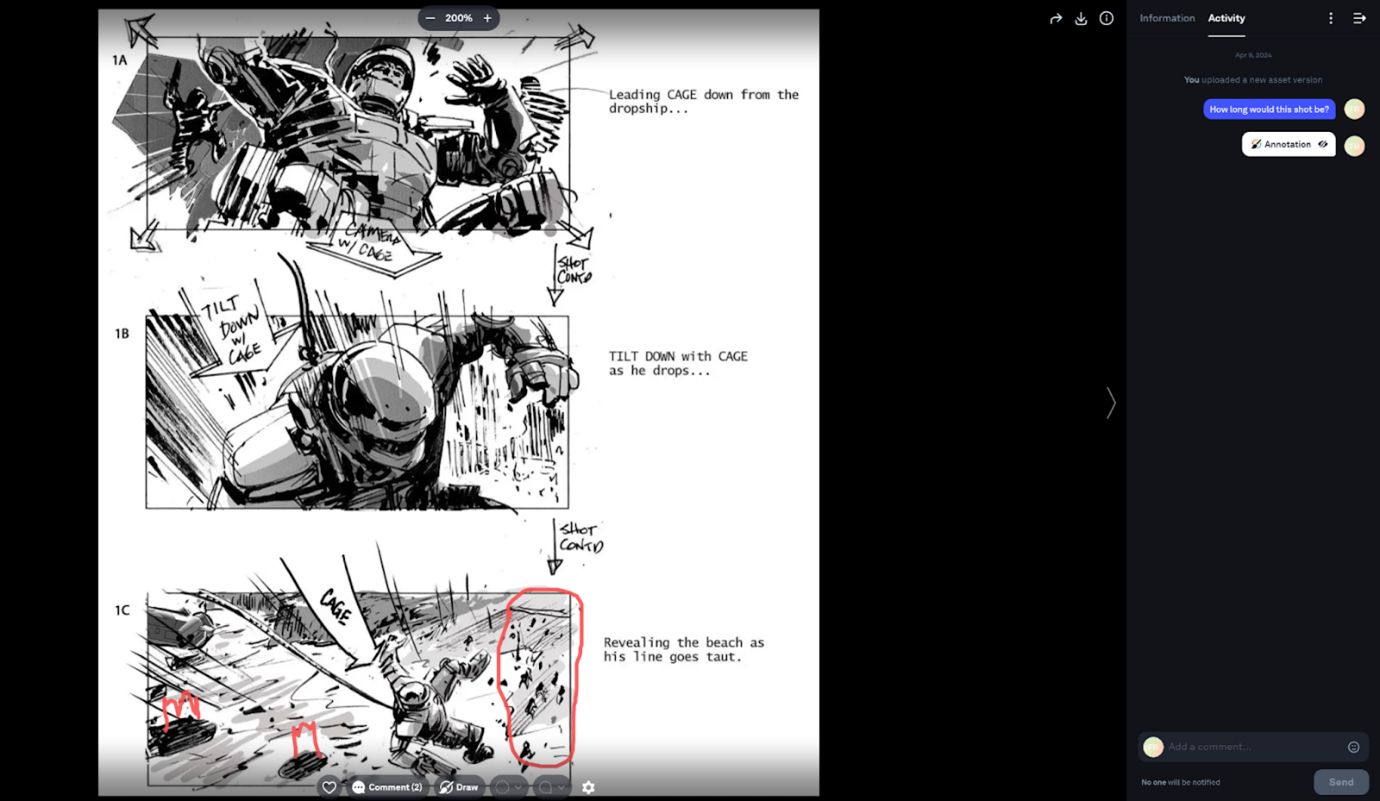 Some tools (like Picflow) are specifically designed to help creatives and teams collaboratively review, proof, and approve visual content. Others (like Miro) are more focused on giving teams a space to use visuals to collaborate on brainstorming, planning, and organizing.
10 Top Visual Collaboration Tools
| Tool | Feedback & Review Features | Custom Branding | Best For | Rating |
|---|---|---|---|---|
| Picflow | Favorites, flags, color labels, comments, in-image annotations, activity tracking | Yes | Visual feedback and approval for photographers, designers, and agencies | 4.4 |
| ClickUp | Task comments, threaded discussions, file attachments, proofing on select plans | Yes | All-in-one project management with visual whiteboards and feedback tools | 4.7 |
| ConceptBoard | Sticky notes, comments, annotations, live cursors, @mentions | Yes | Remote workshops, brainstorming, and agile collaboration | 4.6 |
| Miro | Comments, sticky notes, annotations, @mentions, voting | Yes | Brainstorming, planning, mapping, and product development | 4.7 |
| Canva | Real-time commenting, annotations, and version history | Yes | Marketing and social media design with collaborative editing | 4.7 |
| Figma | Live comments, annotations, version history, multiplayer editing | Yes (Enterprise) | UI/UX design and prototyping with real-time editing | 4.6 |
| FigJam | Comments, sticky notes, stamps, live cursors, audio chat | Yes (via Figma Org) | Team planning, whiteboarding, and retrospectives | 4.6 |
| Milanote | Comments, image annotations, shared boards | Yes | Moodboards, creative briefs, and visual planning | 4.5 |
| MarkUp.io | In-context comments, annotations, website/file markups | Yes (Pro plans) | Client-facing feedback on websites and files | 4.7 |
| Mural | Comments, sticky notes, @mentions, voting, timers | Yes | Enterprise collaboration, design thinking, innovation sessions | 4.6 |
1. Picflow
Picflow is an online gallery tool that helps photographers, designers, and marketers (plus anyone else who deals with visual content) create stunning image galleries, centralize feedback, and streamline approvals.
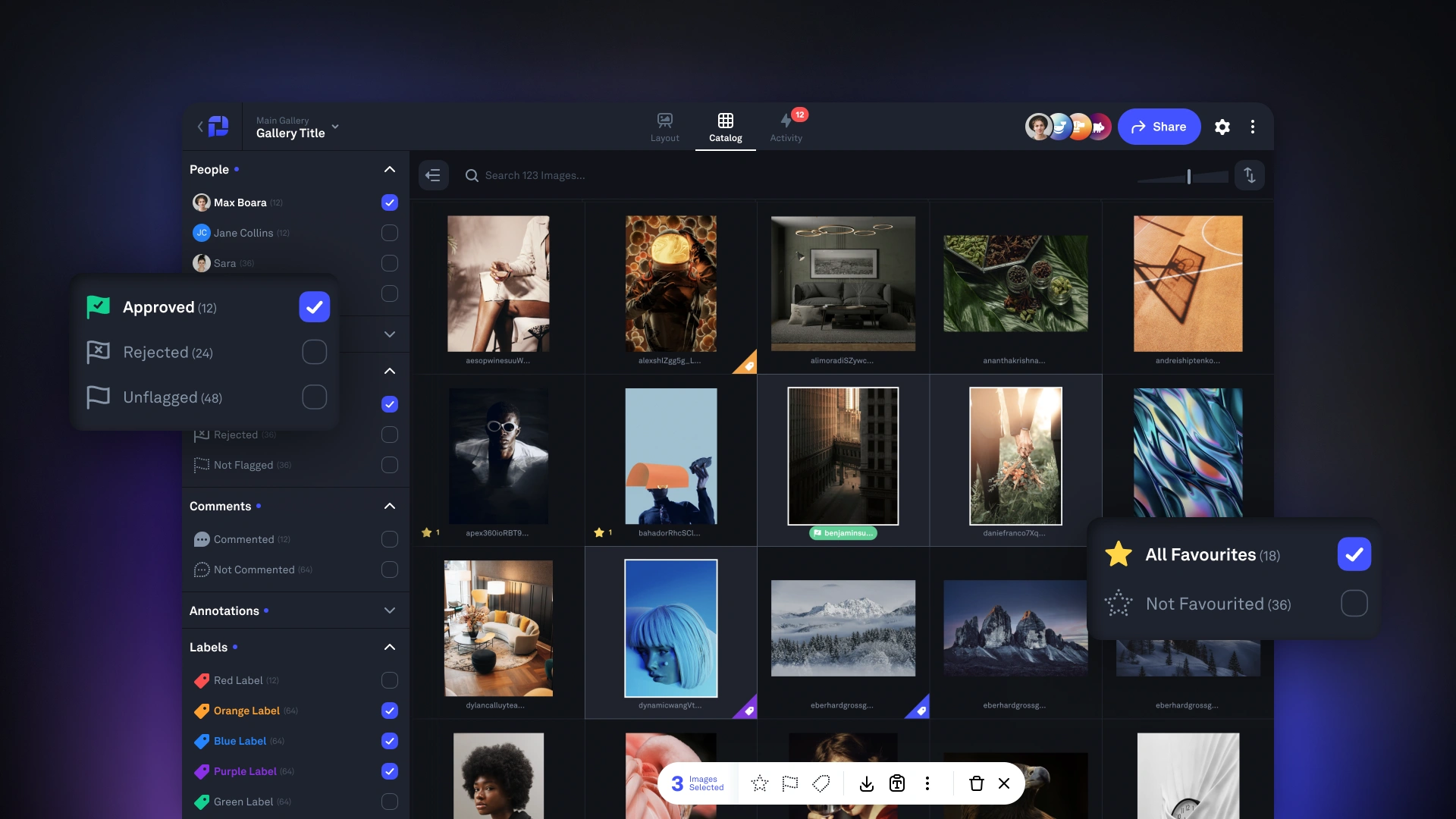 Our gallery designer lets you create beautiful, on-brand galleries in minutes, and you can quickly share them with a link or by adding collaborators. Feedback can take the form of image and video annotations, comment threads, to-dos, and tags. And when it’s time for approvals, Picflow makes it easy to create approval lists and limit downloads.
Key Features
Customizable Galleries: Users can design their galleries according to specific needs, choosing layout styles and incorporating branding elements.
Review and Approval Tools: Picflow includes features like favorites, flags, color labels, and annotations to simplify the feedback process.
Real-Time Collaboration: Team members and clients can view and comment on galleries in real time, speeding up the approval process.
High-Quality Images & Videos: Upload images and videos in the highest quality possible, ensuring that every detail is captured and displayed accurately.
Workflow Mode: Unlock advanced, workflow enhancing features like bulk actions, keyboard shortcuts, and more.
Security and Privacy Controls: Secure your work with watermarks, access controls, and download limits.
Mobile Accessibility: Accessible on any device with a screen and browser for collaboration on-the-go.
Pros & Cons
Ease of use
Efficient feedback collection
High customizability
Rapid setup
Scalable solutions
Responsive design
Secure sharing
Real-time access and editing
Limited features on the free plan
2. ClickUp
ClickUp markets itself as “one app to replace them all”. And while that might be overselling it a bit, there's no denying that ClickUp offers an impressive array of visual collaboration features and integrations.
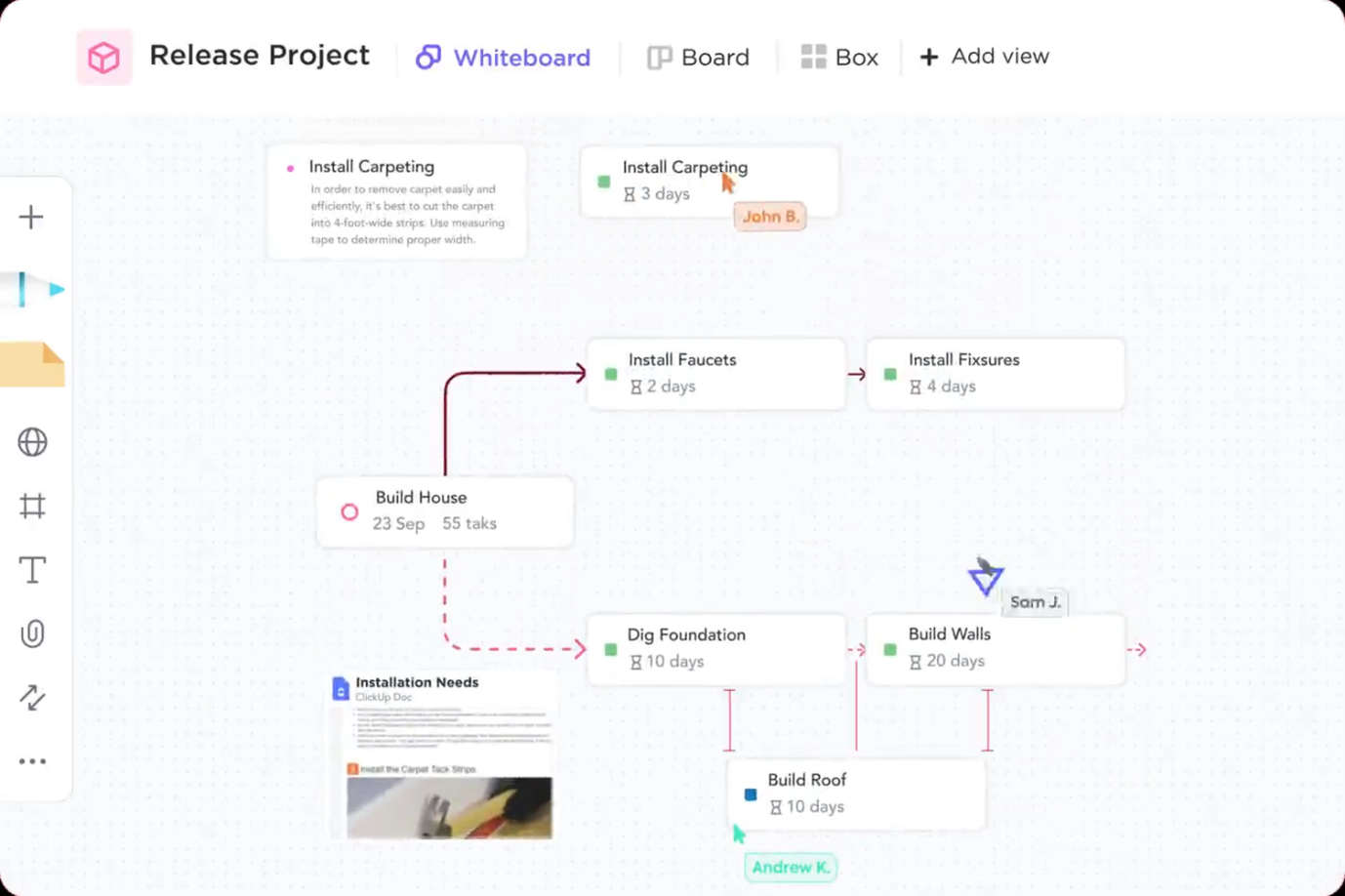 One of these is Whiteboards—a virtual canvas for teams to brainstorm and collaborate. There’s also Clips, which is a Loom-esque tool for recording and sharing short videos. Finally, there’s the ability to upload or embed just about any kind of file to gather feedback.
Key Features
Multiple Views for Task Management: Offers over 15 different ways to view tasks, including List, Board, Calendar, Gantt, and Mind Maps, ensuring flexibility in how projects are managed and visualized.
Whiteboards: Virtual canvas where teams can brainstorm, mind-map, and collaborate in real time. Allows for easy organization and visualization of ideas.
Clips: Record and share short videos to communicate ideas, instructions, or updates. Saves time and makes communication more engaging.
File Uploads & Embedding: Easily upload or embed any type of file for team collaboration and feedback. No need for multiple platforms or applications.
Integration Capabilities: With integrations for over 1,000 external tools, ClickUp can centralize almost all aspects of work management, reducing the need to switch between apps.
Pros & Cons
Massive range of features
Great integrations
Very customizable
Great template library
Prone to glitches and bugs
Difficult to collaborate with external stakeholders
Performance could be better
3. ConceptBoard
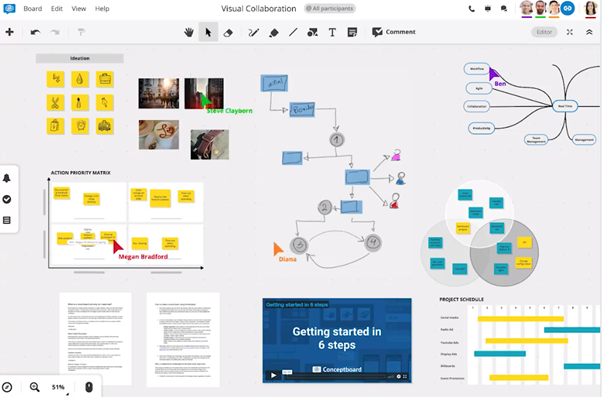 Conceptboard is a digital whiteboard tool with features that support brainstorming, design, Agile processes, and project management. It also integrates nicely with a bunch of popular video conferencing tools, and is fully GDPR and ISO 27001 compliant.
Key Features
Infinite Canvas: Offers an expansive workspace that can scale to accommodate all types of projects and ideas.
Live Cursors: Shows real-time pointers with participant names, making collaborative sessions more interactive.
Moderation Tools: Guides discussions and workshops effectively by managing participant interactions on the board.
File Import: Supports various file formats for easy sharing and annotation within the workspace.
Templates: Provides a broad library of pre-made templates to speed up workflow and maintain consistency across projects.
Pros & Cons
Shows live cursor position
Great for enriching meetings
Solid template library
Great performance
Simple to use
Not designed for accurate design work
4. Miro
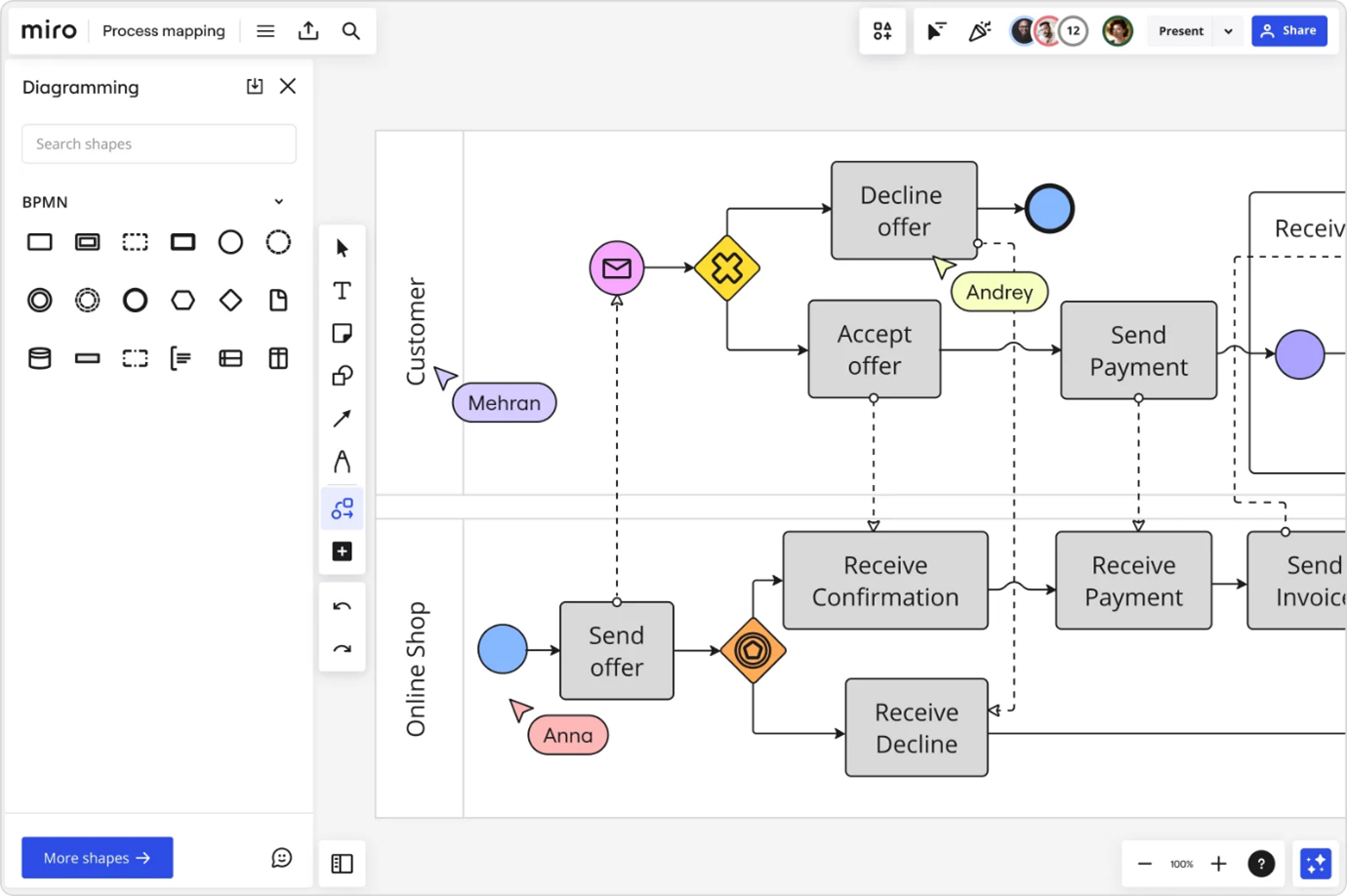 Miro is another virtual whiteboard tool—this time more focused on supporting accurate, detail-oriented visual collaboration. It offers a great set of tools for prototyping, workflow mapping, and more, plus templates for things like wireframing, user journey mapping, and storyboarding.
Key Features
Template Library: Access hundreds of templates covering everything from mind mapping to retrospectives to technical diagramming.
Live Cursors: See exactly what others are doing on the board in real-time.
Integrations: Connect Miro to other tools like Slack, Jira, and Trello for seamless collaboration.
Collaboration Tools: Add comments and notes to diagrams, tag specific users for feedback, and see revision history.
Miro Assist: Access an assistant that can help you with a huge range of tasks—from grouping objects to creating shapes and diagrams.
Pros & Cons
Accurate design features
Great shape and icon library
Wide range of templates
Solid collaboration tools
Great interface
File uploads can be frustrating
Not great for customer-facing design
5. Canva
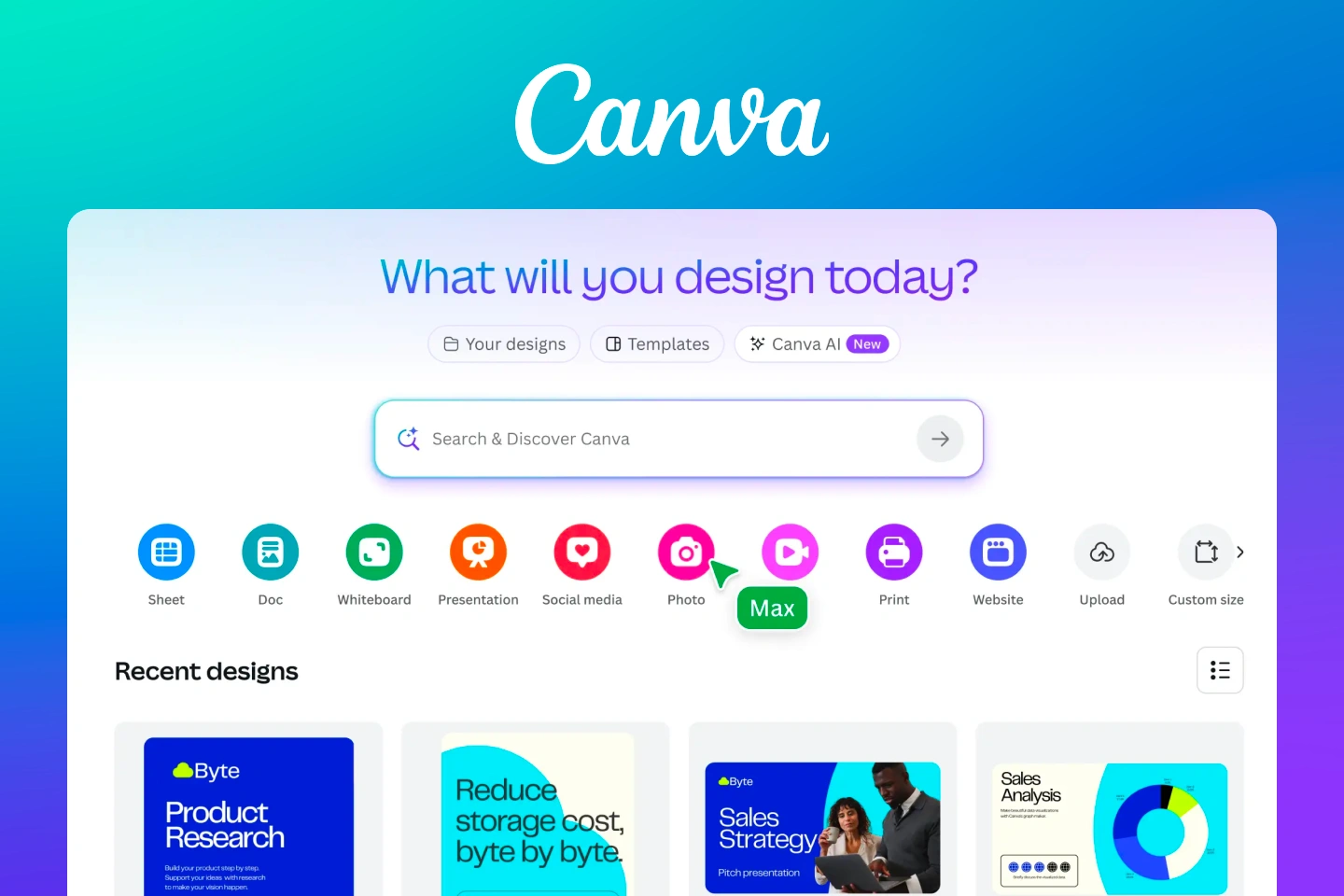 Canva probably doesn’t need much introduction. It’s a user-friendly design tool that offers tons of features for collaborating on designs, social media posts, presentations, and more. There is also a selection of features for review and approval, as well as a massive library of third-party apps.
Key Features
Extensive Template Library: Offers thousands of customizable templates for almost any type of design.
Drag-and-Drop Editor: Simplifies the design process with an intuitive interface that allows users to easily add and adjust elements.
Collaboration Tools: Supports collaboration with features like real-time editing, comments, and the ability to share designs with specific team members.
Third-Party Integrations: Connects with popular apps like Dropbox and Google Drive for seamless file management.
Print Services: Users can order prints of their designs directly through Canva, including flyers, posters, and business cards.
Pros & Cons
Very accessible
Great free plan
Decent collaboration tools
Huge template library
Solid integrations and app options
Not as powerful as alternatives like Adobe Creative Suite
Limited customization options compared to other design software
6. Figma
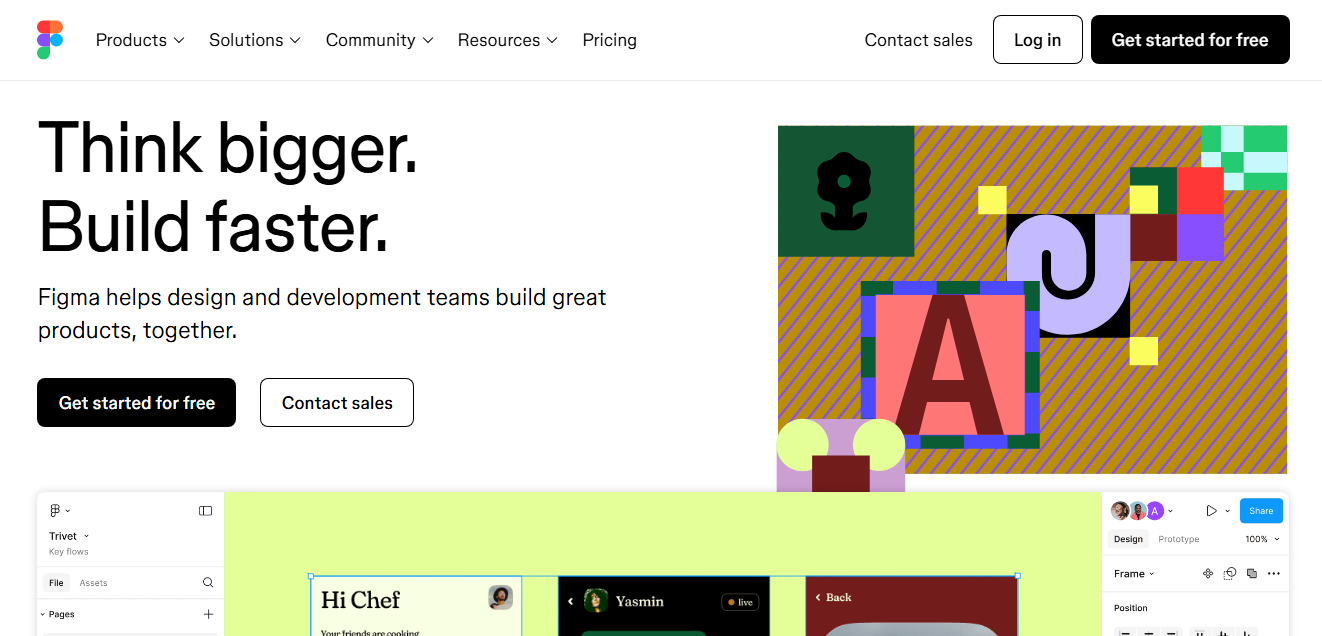
Figma is a browser-based design and prototyping tool built for real-time collaboration. Teams can co-create interfaces, design interactive prototypes, and hand off work to developers all in one platform. With live editing, threaded comments, and version control, Figma keeps remote product and design teams aligned and efficient.
Key Features
Multiplayer Editing: Design with teammates in real time, with live cursors and synced updates.
Prototyping & Developer Handoff: Build interactive prototypes and generate code snippets.
Version History: Track edits and restore previous versions anytime.
Comment Threads: Leave feedback directly on designs for clear communication.
Plugins: Extend functionality with third-party tools and AI add-ons.
Pros & Cons
Great for UI/UX collaboration
Strong community and plugin ecosystem
Excellent browser performance
Lacks full print design capability
Can overwhelm non-designers
Big files can run slowly.
7. FigJam
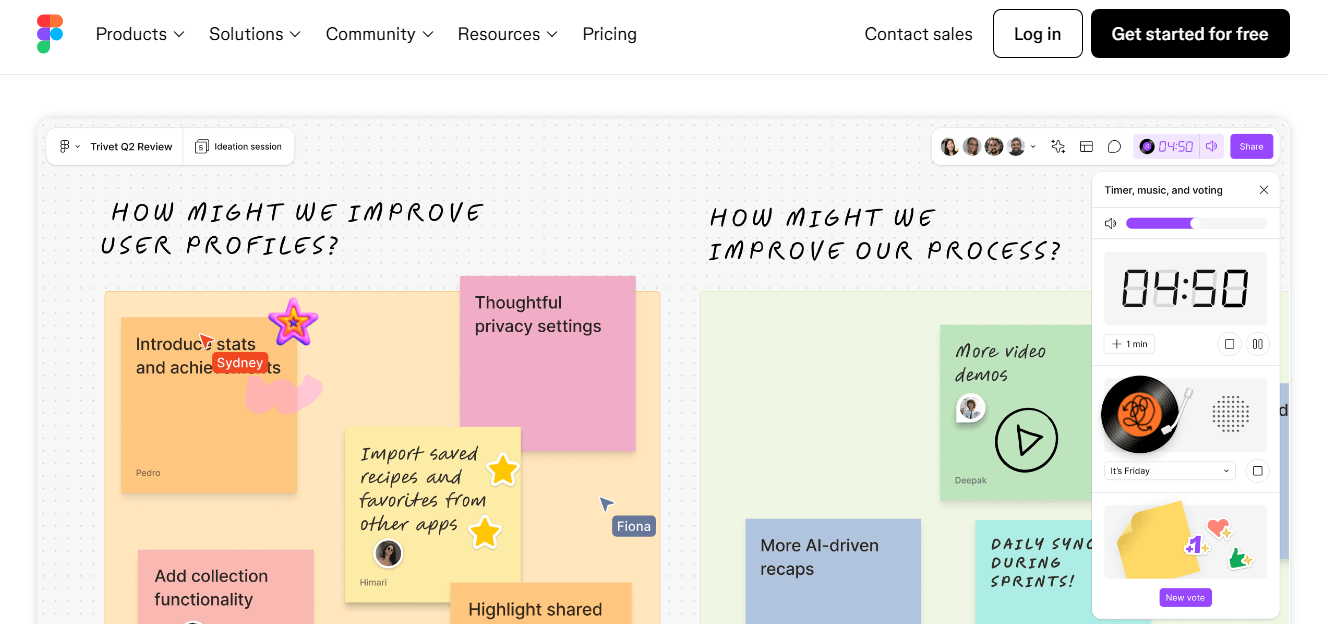
FigJam is Figma’s whiteboard tool, made for mapping ideas, running retrospectives, and collaborating visually in real time. It’s playful, easy to use, and integrates tightly with Figma—making it great for teams that brainstorm together before jumping into design. Ideal for workshops, team planning, and ideation.
Key Features
Sticky Notes & Drawing Tools: Great for brainstorming and mapping.
Cursor Chat & Emojis: Make collaboration feel more human.
Templates & Widgets: Speed up workshop prep and teamwork.
Figma Integration: Seamlessly move ideas into Figma designs.
Pros & Cons
Interactive and easy to use
Perfect for team planning
Many ready-made templates and sticky notes.
Less clutter than Miro or Mural
Not ideal for visual production work
No built-in version control for boards.
8. Milanote
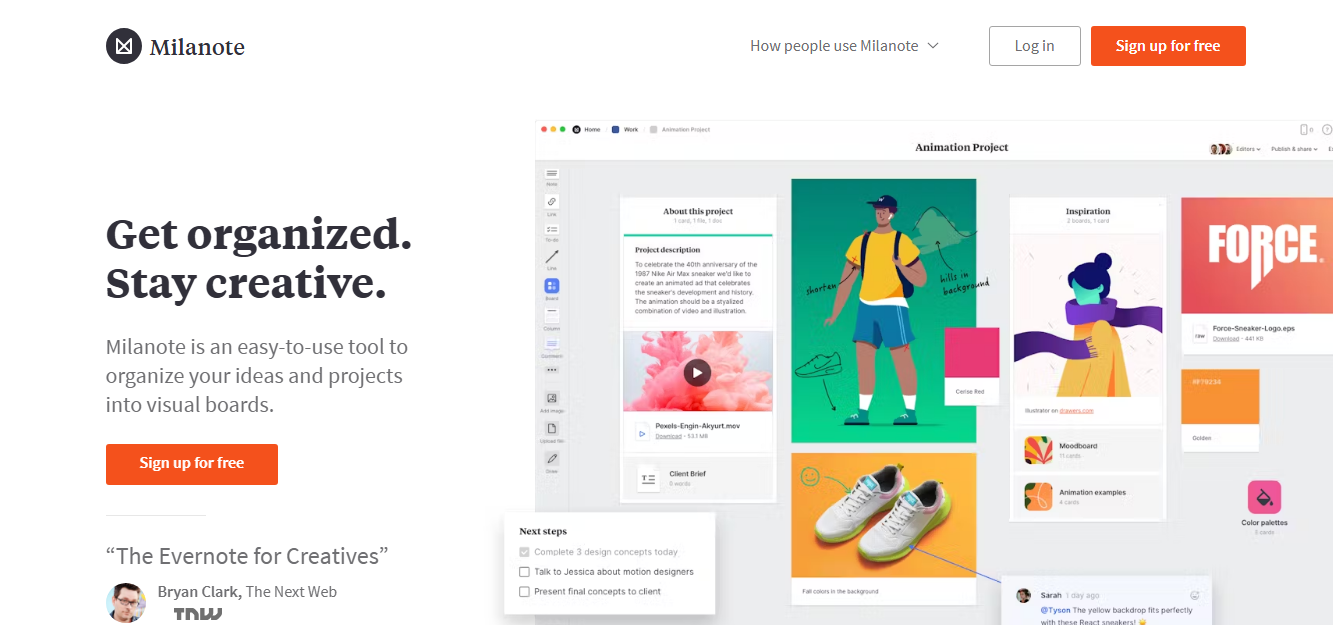
Milanote is a visual organization tool built for creative projects like moodboards, storyboards, and project briefs. Its flexible drag-and-drop canvas makes it easy to arrange images, notes, links, and checklists visually. It’s perfect for early-stage planning and presenting ideas to clients in a clear, visual way.
Key Features
Drag-and-Drop Canvas: Organize text, images, links, and checklists visually.
Board Sharing: Share read-only or editable boards with clients or collaborators.
Templates: Project briefs, moodboards, and storyboards ready to go.
Offline Mode: Work offline and sync later.
Pros & Cons
Great for moodboarding and early concepts
Simple for clients to understand
Flexible layout with no strict grid
Not suited for design production
Limited real-time features
Can feel cluttered with too many items.
9. MarkUp.io
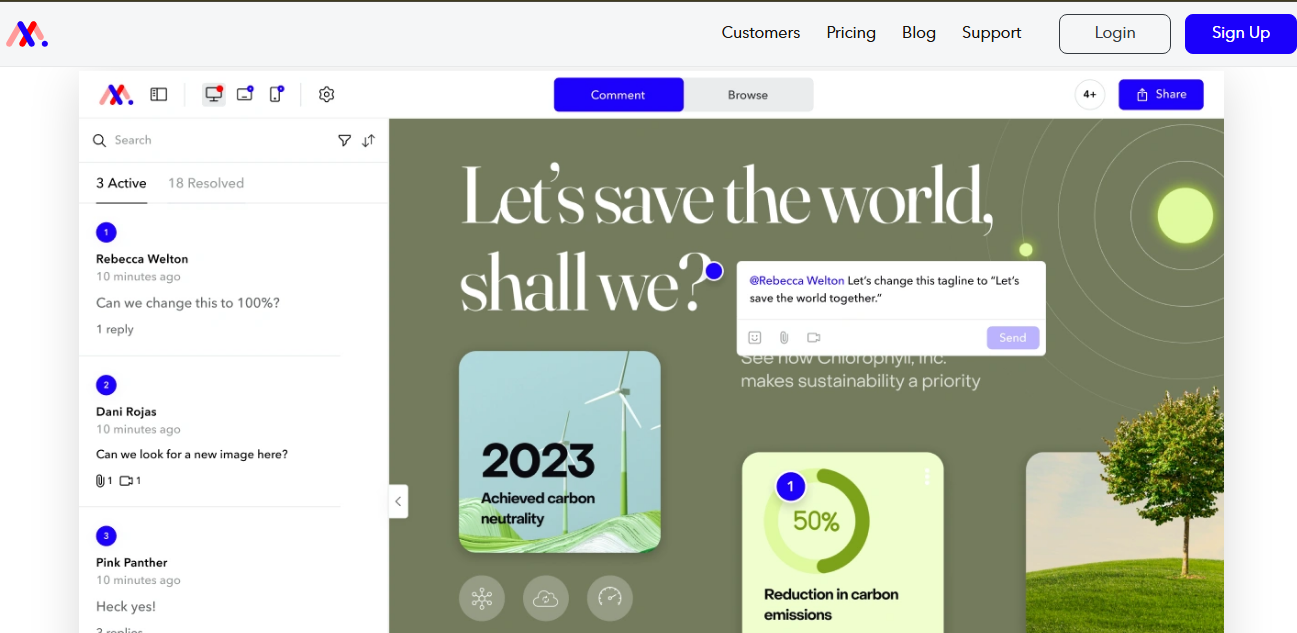
MarkUp.io is a lightweight visual feedback tool that lets users comment on live websites, images, and PDFs. It’s ideal for sharing designs or prototypes with clients, no login required. With simple markup tools and quick setup, it speeds up approvals for marketing, design, and development teams.
Key Features
Live Website Commenting: Add notes directly on any URL.
PDF & Image Review: Upload files and add frame-specific feedback.
No Login Required: Clients can comment without creating an account.
Integrations: Works with Notion, ClickUp, and Slack.
Pros & Cons
Fast setup, easy client reviews
Ideal for client review cycles
Works in-browser with no software installation
Not a full whiteboard or design tool
Free plan is limited
Can get messy if too many comments pile up.
10. Mural
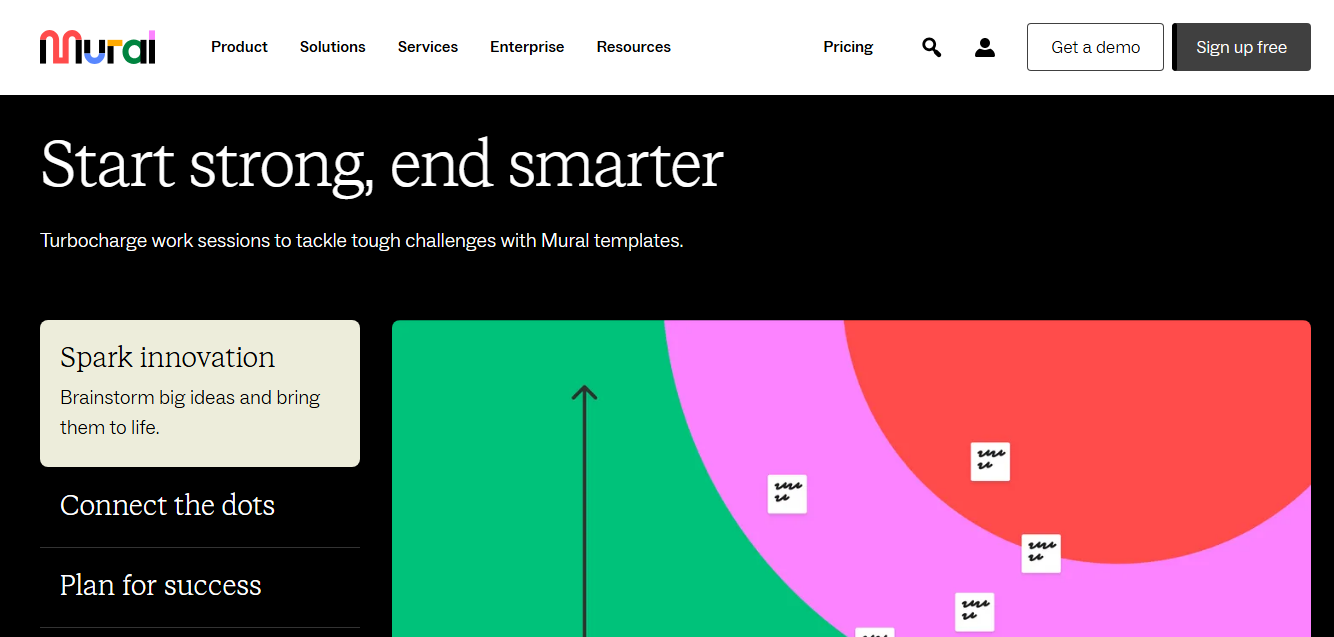
Mural is an enterprise-ready visual collaboration platform designed for team workshops, innovation planning, and agile processes. It provides templates, sticky notes, voting tools, and facilitation features to help remote teams brainstorm, strategize, and align effectively. It’s particularly suited for larger teams running structured sessions.
Key Features
Templates & Frameworks: Design thinking, OKRs, stakeholder mapping, and more.
Facilitation Tools: Voting, timers, and guided modes to keep sessions on track.
Sticky Notes & Diagrams: Flexible, fast whiteboarding for ideas and visuals.
Security & Admin Controls: Enterprise-grade options for large teams.
Pros & Cons
Rich facilitation features
Best for remote workshops and team planning
Large library of templates for workshops and planning.
Steeper learning curve for new users
Performance issues with large boards
Not ideal for detailed design work.
Benefits of Using Visual Collaboration Tools
Enhanced Communication: Visual collaboration tools facilitate clearer and more effective communication by allowing users to convey complex ideas visually, reducing the risk of misunderstandings and improving team alignment.
Improved Productivity: Visual collaboration tools streamline workflows by enabling simultaneous editing and real-time collaboration on visual content, eliminating the need for back-and-forth emails or meetings and accelerating decision-making processes.
Remote Collaboration: With the rise of remote work, visual collaboration tools bridge the gap between geographically dispersed team members, enabling seamless collaboration regardless of location, time zone, or device.
Creative Problem Solving: Visual collaboration tools stimulate creativity and innovation by providing a digital canvas where team members can brainstorm ideas, visualize concepts, and explore different solutions collaboratively, leading to more effective problem-solving and decision-making outcomes.
Criteria to Consider When Choosing A Visual Collaboration Tool
Ease of Use: Look for a visual collaboration tool with an intuitive interface and user-friendly features to ensure team members can quickly adapt to the platform without extensive training or technical expertise.
Collaboration Features: Evaluate the tool's collaboration capabilities, such as real-time editing, commenting, annotation, and screen sharing, to ensure seamless interaction and teamwork among users working on visual content.
Compatibility: Consider the compatibility of the tool with devices, operating systems, and files that you use regularly. Are there any limitations or restrictions that may hinder the tool's effectiveness in your team's workflow?
Scalability and Pricing: Choose a visual collaboration tool that can scale with your team's growing needs and offers flexible pricing plans that align with your budget constraints and usage requirements, ensuring cost-effective collaboration solutions without compromising functionality or performance.
Conclusion
Visual collaboration tools are vital assets for modern businesses and empower teams to collaborate on visual content such as images, videos, diagrams, and documents in real-time, regardless of geographical distance or time zones.
Choosing the right tool is crucial for maximizing efficiency and achieving business objectives.
Picflow is a dynamic online collaboration tool that empowers creative professionals to efficiently organize, share photos, and review visual content through customizable media galleries, enhancing workflow and client interaction.
Sign up for Picflow today!
)